Display Technology
Interactive Kiosks: How Self-Service Screens Are Reshaping Digital Signage
Interactive kiosks are changing digital signage by handing control to the viewer. Instead of watching a passive loop, people tap, swipe, and find exactly what they need. This guide explains what sets kiosks apart, why operators are adopting them, where they work best by industry, and how to plan and build one that performs.
June 22, 2026
 ChatGPT
 Grok
Grok Perplexity
 Claude
What is an Interactive Kiosk?
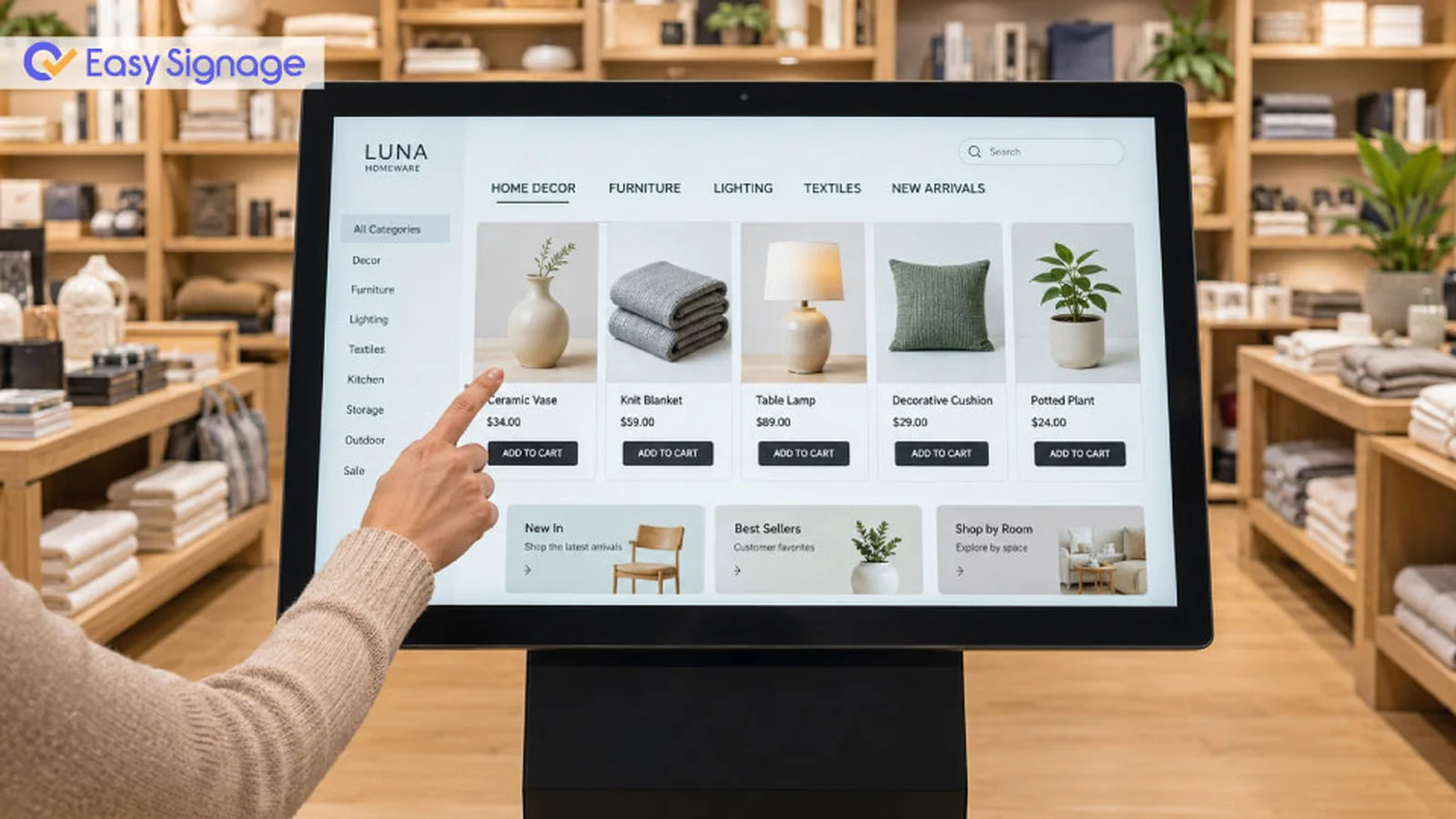
An interactive kiosk is a touchscreen display that hands control to the viewer. Instead of just watching content play on its own, people can tap and swipe to find what they want, like a menu, a store directory, a product page, or a wayfinding map.
This is different from a normal sign. A normal sign talks to people. A kiosk responds to them.
Touch screens are now a big part of how people expect to find information. This guide explains what makes a kiosk different from normal signage, why businesses use them, where they work best, and how to build one using EasySignage without going off track.
Kiosk vs. standard signage: what’s the difference
Most digital signage just plays content. A loop of videos, images, or slides runs on a schedule, and people watch whatever is on screen at that moment. This works well for simple messages like sales, brand ads, and short announcements that people see as they walk by.
A kiosk works the other way around. The screen waits. Nothing happens until someone reaches out and touches it, and from that point, the visitor decides what to look at and how fast to go.
The cleanest way to hold the two apart:
- Digital signage goes one way. The operator decides what plays and when.
- Interactive kiosks go two ways. The visitor asks, and the screen answers on demand.
Neither is "better." They solve different problems. If you just want people to notice something, a loop works fine. If you want people to do something like order food, find a room, browse products, or check in, a touch screen is the better choice.
Why businesses are moving toward touch screens
More and more businesses are adding interactive touch screens, and the reasons tend to repeat across industries:
- People pay attention longer: When people can tap and explore, they stay interested. Someone browsing a product list is far more engaged than someone just watching slides.
- Frontline staff get more time: The repetitive questions, where something is, what is available, and how to get somewhere, are answered by the screen, freeing employees for the work only a person can do.
- Visitors get answers fast: No waiting in line, no flagging someone down. The information is a tap away, which is the experience most people now expect.
- It makes the brand look modern: A working touch surface tells visitors that the business cares about the visitor's experience.
- Self-service is what customers actually prefer: Given the choice between waiting for help and helping themselves, people would rather use a screen than wait for help.
Where interactive kiosks work best
Touch screens fit almost anywhere people need fast, easy access to information. Here are some of the best places to use them:
Retail
Shoppers can browse more products that would never fit on the shelf, check prices and details, and find items in the store. It works like a helper for every customer who walks in.
Restaurants and quick-service
Touch menus replace paper menus. Diners can look through the menu, see real photos of dishes, read ingredients, and in many setups place their own order without waiting for a server.
Hotels and hospitality
A lobby screen becomes a concierge that never clocks out. Guests can find local tips, hotel services, event times, and directions around the building, all on their own.
Offices and workplaces
Guests can sign in, find rooms and floor directories, get directions inside the building, and read updates. Both employees and guests move through the building with less friction.
Events and exhibitions
Visitors get an easy guide with schedules, speaker info, exhibitor maps, and room locations. No paper booklet that goes out of date.
Healthcare
Patients can find departments, check in for appointments, and look up service information on their own. This means shorter lines and less work for front-desk staff.
Schools and universities
Campuses use kiosks for maps, event boards, directories, and department info that students and visitors can find themselves.
Plan before you build
The most common kiosk mistakes happen before any content is created. A few decisions worth making up front:
Pick the task first, the screen second: Define the one or two jobs the kiosk must do well. A kiosk that tries to do everything usually does nothing clearly.
Confirm the hardware is genuinely touch-capable: This sounds obvious, but it trips up real projects. A standard display will show kiosk content but ignore every tap. The screen itself has to support touch input. If your current screen does not, that is a hardware swap, not a software setting.
Choose the right device for the spot: A kiosk runs on a media player or device behind the screen. Think about where it goes, how it connects to the internet, and how it stays powered and safe before you install it.
Design for people in a hurry: People often use kiosks while standing and in a rush. Big buttons, short steps, and clear next moves work better than busy, clever layouts every time.
How to build an interactive kiosk with EasySignage
Building a multi-page kiosk used to mean custom development. Tools like the EasySignage Interactive Kiosk App make it a no-code job you can do from one dashboard. The basic flow:
- Pick a template that fits your use case, like a store browser, directory, or map.
- Add your content, swap in your own text and high-quality images.
- Link the pages by making images and buttons tappable so that visitors can navigate.
- Publish to your screen straight from the dashboard.
For the full step-by-step guide, see the EasySignage walkthrough on building an interactive kiosk.
Tips for a kiosk people will actually use
Setting it up is the easy part. Making it good takes a few extra habits:
- Use clear, high-quality images. Blurry images look careless on a big screen and make people trust it less.
- Keep navigation simple. Try to make everything reachable in one or two taps. Too many steps drive people away.
- Test on the real screen. Touch response, button size, and layout all work differently on the actual screen. Always check the device you'll use.
- Add a welcome screen. When no one is using the kiosk, show a looping ad or screensaver. It draws people in and shows that the screen is on.
- Refresh content on its own. Set the kiosk to reload now, and then so the information stays up to date without anyone touching it.
- Fit the layout to the screen. Adjust the zoom or scaling so everything fits the screen size and looks right.
- Use "tap to start" prompts. Clear start buttons, navigation hints, and idle screensavers make the kiosk feel finished and easy to use.
Final thoughts
Interactive kiosks are one of the fastest-growing parts of digital signage, and the reason is simple: more engagement, less work for staff, and a modern self-service experience people remember. The technology is no longer the hard part; most platforms let you build a multi-page kiosk from templates in an afternoon. The real work comes earlier: choosing the right job, making sure your screen supports touch, and keeping the steps simple enough that a first-time visitor finds what they need in a tap or two.
Included In This Story

EasySignage Digital Signage
Affordable, Powerful Cloud Digital Signage Platform. Manage Any Screen, Anywhere
EasySignage is a cloud-based digital signage software that lets any business design, schedule, and send content to any screen in minutes. With 60+ apps and features along with enterprise-grade security on Google Cloud, it's the smart choice for any industry. Free for 1 screen. Supports Android, Samsung, LG, Raspberry and more.
Related Media
Subscribe
Get the latest news and resources from Digital Signage Today.